Connect Claude Code, Codex, Cursor
This page shows how to create a token and add the KDT Sharing MCP server to Claude Code, Codex or Cursor. You only need to do it once per machine.
Before you start
- You belong to at least one workspace whose owner is on the Creator or Team plan. Otherwise the page shows a notice with an Upgrade button.
- Claude Code, Codex or Cursor is installed on your machine.
Create a token
-
In the sidebar, under Workspace, choose AI connections.
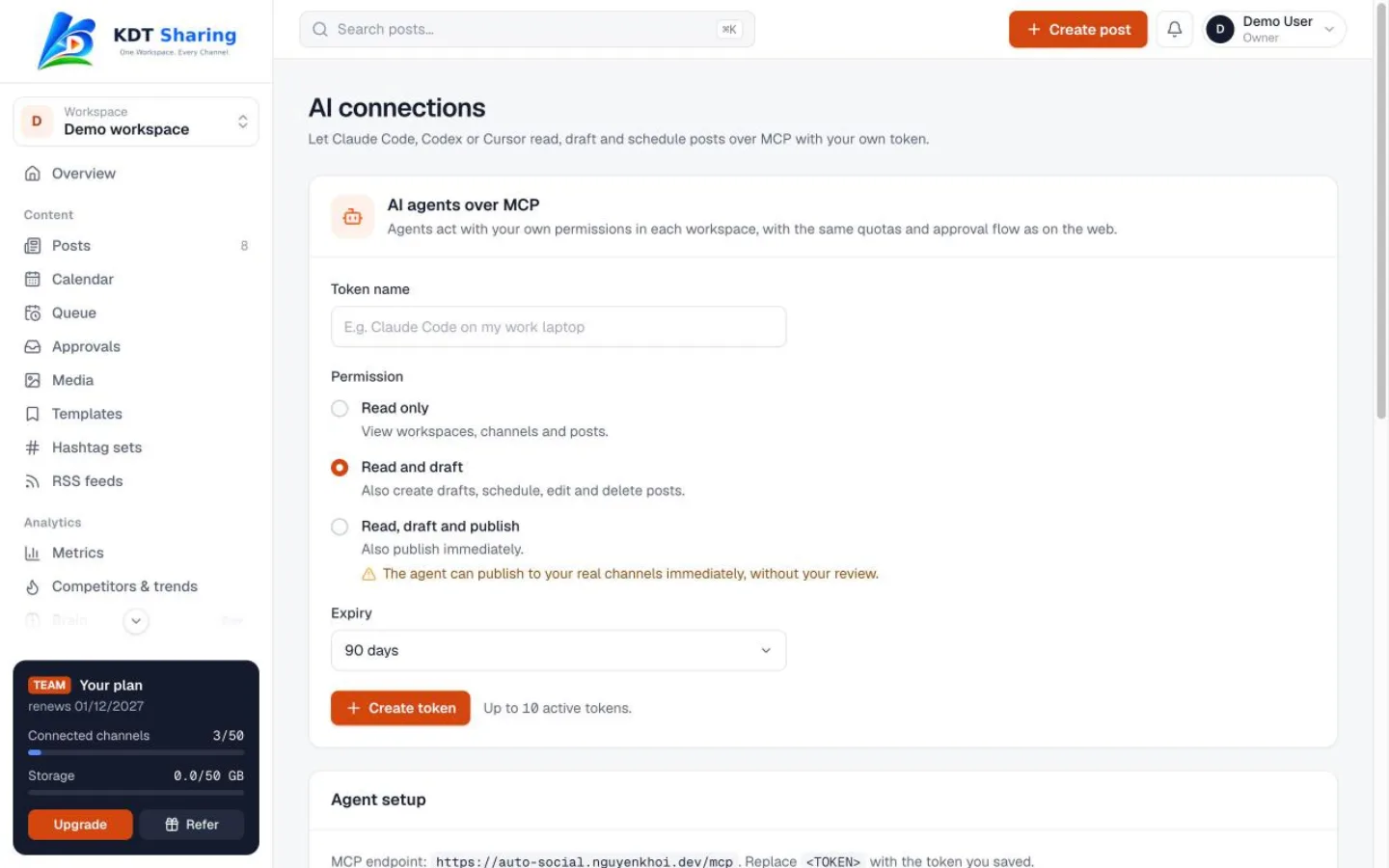
Create a token for your AI agent -
Enter a Token name, such as "Claude Code on my work laptop". The name helps you recognize the token if you need to revoke it.
-
Pick a Permission: Read only, Read and draft or Read, draft and publish. See Tokens and permissions.
-
Pick an Expiry: 30, 90 or 365 days, or Never expires.
-
Click Create token.
-
Click Copy and store the token somewhere safe.
The token is shown only once. After you leave the page you can't see it again. If you lose it, revoke it and create a new one.
Add it to your agent
The Agent setup section on the page has a ready-made snippet for each agent. Right after you create a token, the snippets already contain it. On later visits, replace <TOKEN> with the token you saved.
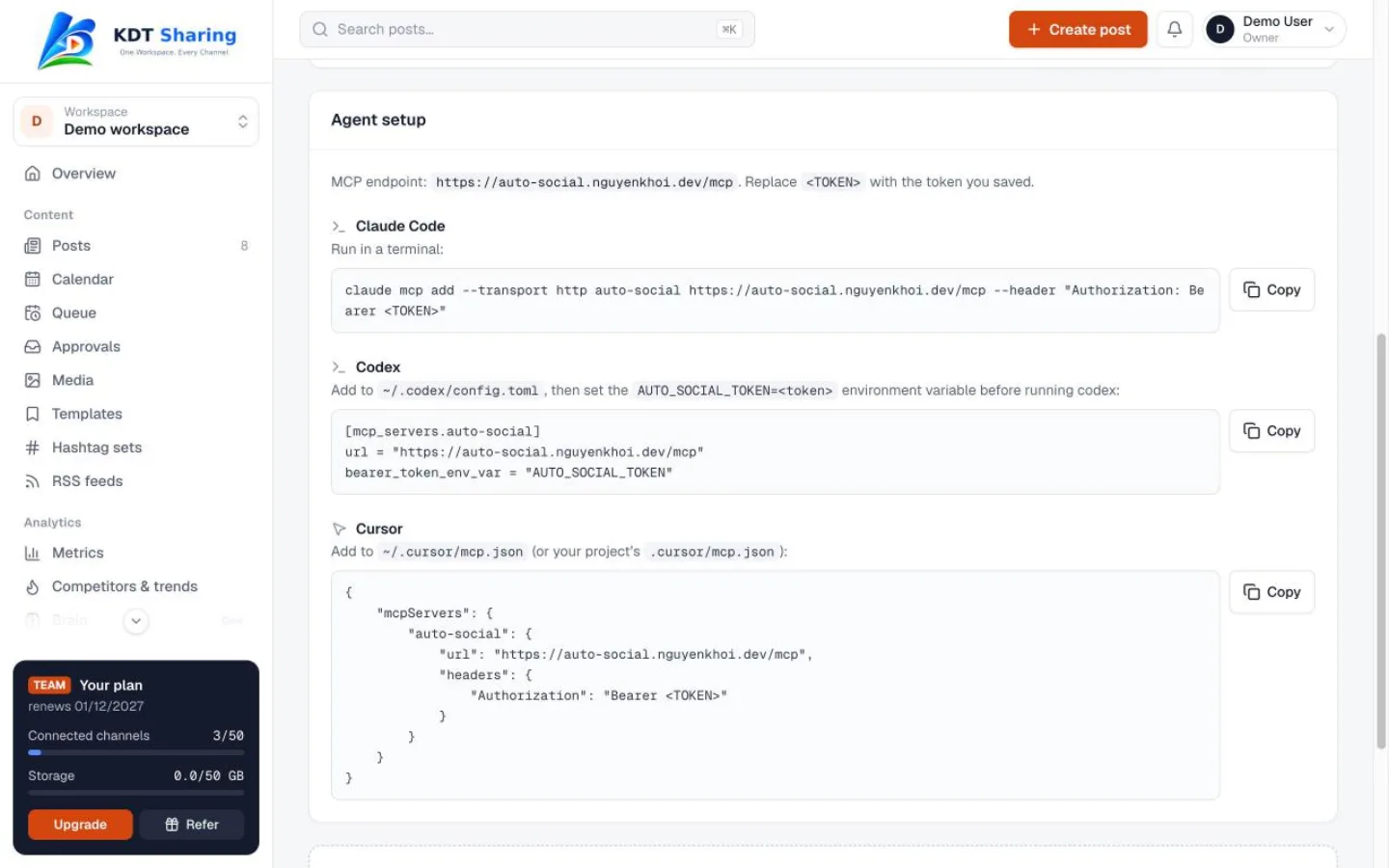
The MCP endpoint is https://kdtsharing.com/mcp. The server name in the examples below is auto-social.
Claude Code
Run in a terminal:
claude mcp add --transport http auto-social https://kdtsharing.com/mcp --header "Authorization: Bearer <TOKEN>"
Codex
-
Add this to
~/.codex/config.toml:[mcp_servers.auto-social]url = "https://kdtsharing.com/mcp"bearer_token_env_var = "AUTO_SOCIAL_TOKEN" -
Set the environment variable before running
codex:export AUTO_SOCIAL_TOKEN=<TOKEN>
Or add it with one command:
codex mcp add auto-social --url https://kdtsharing.com/mcp --bearer-token-env-var AUTO_SOCIAL_TOKEN
When you run codex exec (with no one to approve actions), Codex automatically refuses the delete_post tool. Run Codex interactively if you want the agent to delete posts.
Cursor
Add this to ~/.cursor/mcp.json, or to .cursor/mcp.json in your project folder:
{
  "mcpServers": {
    "auto-social": {
      "url": "https://kdtsharing.com/mcp",
      "headers": {
        "Authorization": "Bearer <TOKEN>"
      }
    }
  }
}
Check the connection
- Open your agent and ask: "List my workspaces on KDT Sharing."
- The agent calls
list_workspacesand returns your workspaces, your role and each workspace's time zone. - Go back to AI connections. The token's Last used column now shows a time.
Common errors
| Error | What to do |
|---|---|
| The agent reports a 401 or can't authenticate | The token is wrong, revoked or expired. Check the token, or create a new one. Changing your password also revokes all tokens. |
| You already have too many active tokens | Each person can have up to 10 active tokens. Revoke an old token before creating a new one. |
| The agent says it has no access to a workspace | That workspace owner's plan doesn't include AI agent connections, or your role doesn't allow the action. |
| Codex can't find the token | The AUTO_SOCIAL_TOKEN variable isn't set in the environment where you run codex. |