Plans and billing
The Plans & billing page shows your current plan, how much of your limits you've used, and your payment history. From here you choose a plan, renew, schedule a plan switch or cancel renewal.
Before you start
- A plan belongs to your account, not to a workspace. Plan limits are counted across all the workspaces you own.
- Only the workspace owner sees the Upgrade and Renew buttons. Other members see Workspace plan, which is the owner's plan.
- Prices and limits for each plan are on the home page and on the Plans & billing page.
Plans
| Plan | For |
|---|---|
| Trial | Trying the product for a short time, with a limited number of posts. |
| Creator | Content creators. Adds media storage on Google Drive, AI agent connections and Second Brain. |
| Team | Teams and agencies. Everything in Creator with higher limits. |
These features need the Creator or Team plan: Store media on Google Drive, AI agents over MCP and Second Brain.
View your current plan
-
Click your avatar in the top-right corner and choose Plans & billing. You can also click the Your plan card in the sidebar.
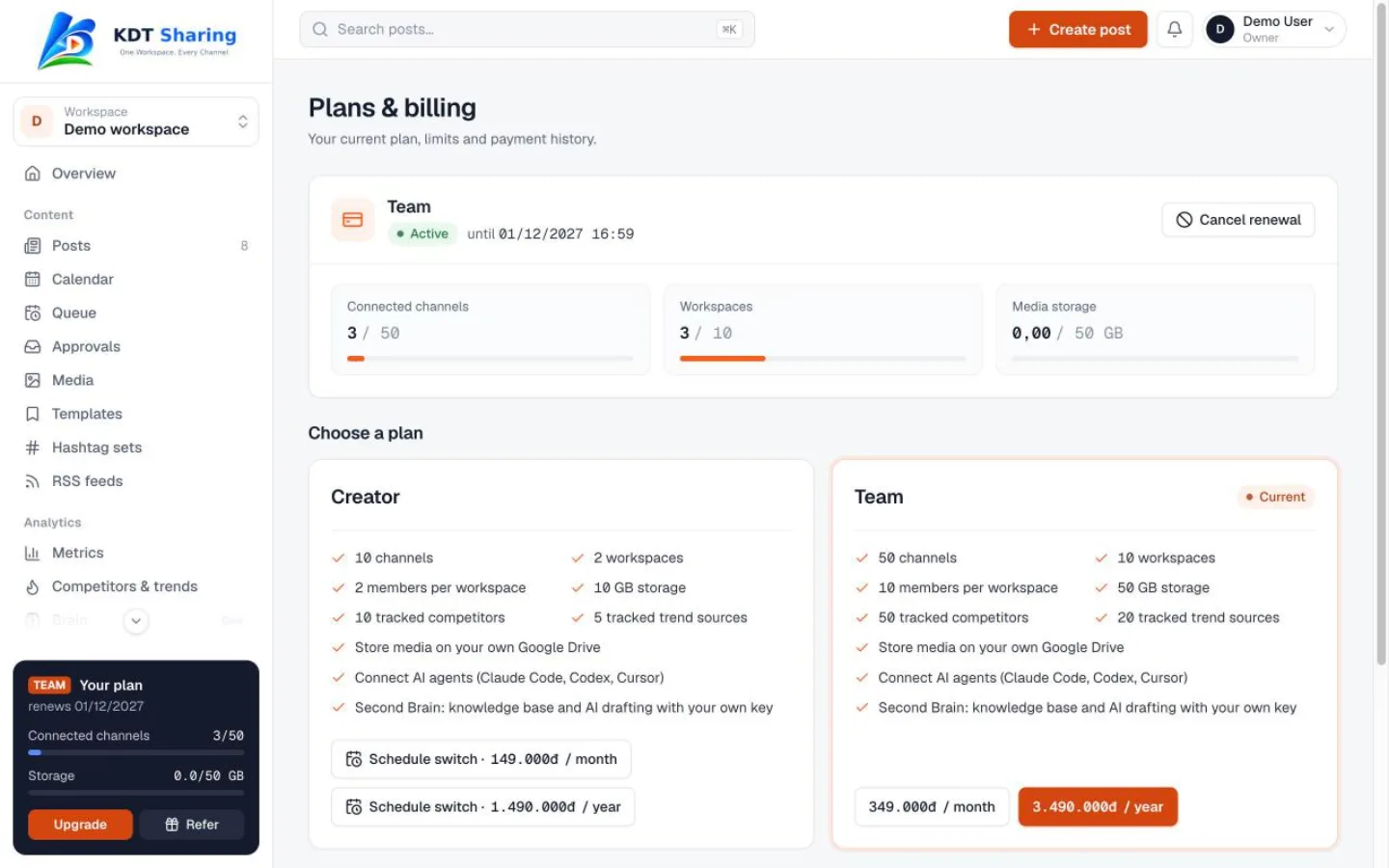
Your current plan and usage -
Check the Current plan, its end date and the usage meters: connected channels, workspaces, media storage and the plan's other limits.
Choose a plan and pay
-
Under Choose a plan, pick a plan and a monthly or yearly cycle.
-
On the Checkout page, fill in the Invoice details:
- Buyer type: Individual or Business.
- Businesses enter the Company name, Tax code (10 or 13 digits) and Company address.
- Invoice email.
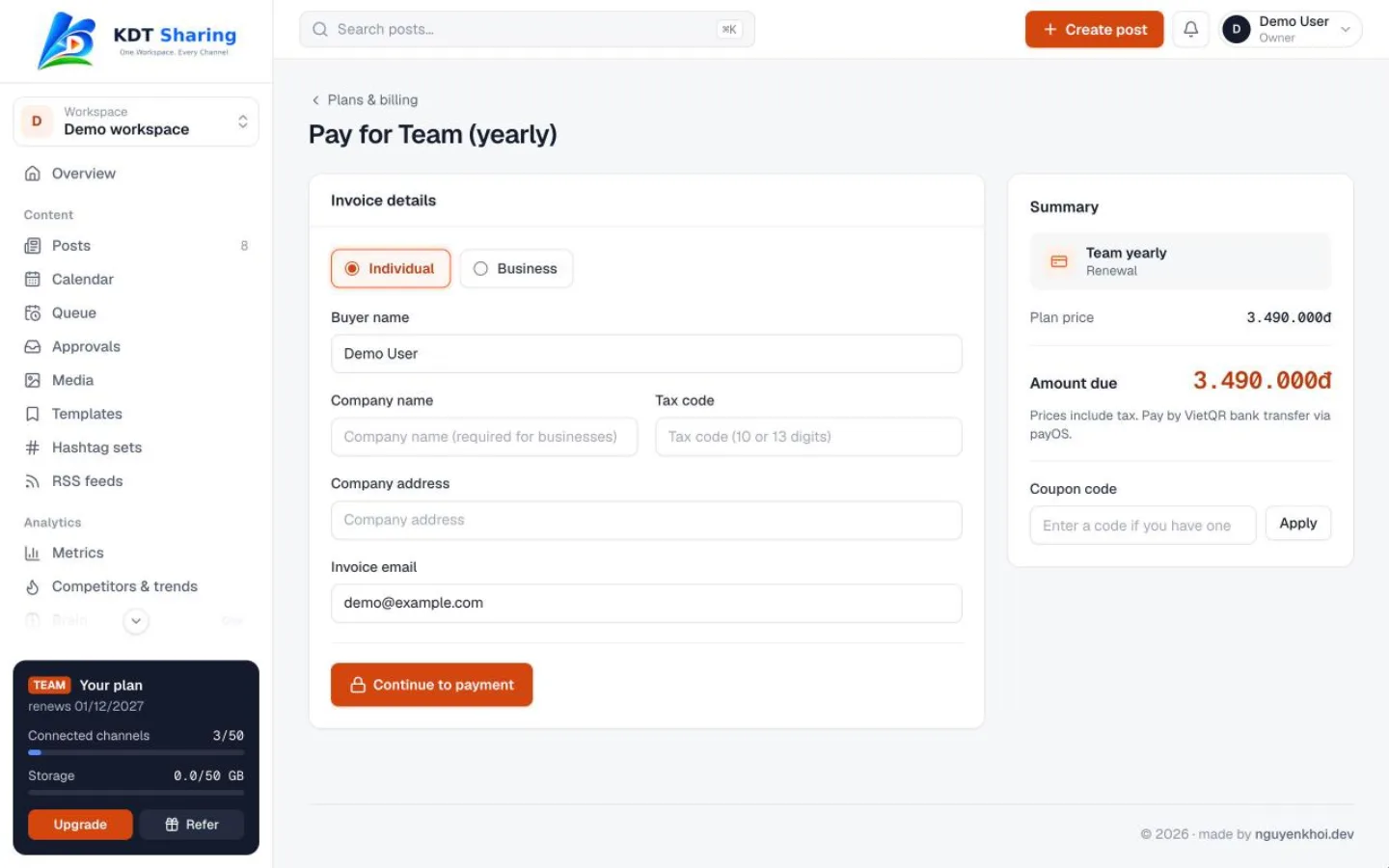
Fill in invoice details before paying -
If you have a Coupon code, enter it and click Apply.
-
Review the Summary and the Amount due. Prices include tax.
-
Click Continue to payment and pay by VietQR bank transfer via payOS.
-
Go back to Plans & billing. While you wait, the page shows "Confirming your payment". The plan activates as soon as payOS reports the transfer, usually within a few minutes.
Only one offer applies per payment. If you have both a referral offer and a coupon, the larger discount is kept. See Referrals.
Upgrade, downgrade and renew
- Upgrade mid-period: the remaining value of your current period is credited against the new plan's price.
- Downgrade: click Schedule switch to move to a lower plan at the end of the current period. The current period stays as is, with no refund of the difference. Click Cancel switch if you change your mind.
- Renew: KDT Sharing doesn't charge you automatically. Near the end of the period you get reminder emails and a Renew button in the banner. Click it to pay for the next period.
- Cancel renewal: click Cancel renewal if you don't want to continue. Your plan stays active until the end of the period, then expires immediately, with no grace period and no more reminder emails. Click Resume renewal to turn it back on before the end date.
When your plan period ends
- Grace period: if you haven't renewed when the period ends, the plan enters a grace period. Scheduled posts still publish, but you can't schedule new ones.
- Expired: after the grace period, the plan expires. Scheduled posts won't publish until you renew.
If you're using more than your plan allows (for example after a downgrade), the page lists what's over the limit. Your data is kept; you just can't add more until usage is back within the limits. Client reviewers don't count toward the member limit.
Payment history and invoices
Payment history lists every payment with the Code, Plan, Amount, Status and Invoice columns. Statuses are Awaiting payment, Paid, Cancelled and Expired.
E-invoices are sent to your Invoice email, usually within the working day. The Invoice column shows a Lookup code: you can use to look up the invoice.
Common errors
| Message | What to do |
|---|---|
| The tax code must have 10 or 13 digits. | Check the company's tax code. |
| This coupon does not exist or is no longer active. | Check the code. It may have expired or not apply to this plan and billing cycle. |
| Downgrades take effect at the end of the current period. | Use Schedule switch instead of paying now. |
| The payment gateway is temporarily unavailable. | Try again in a few minutes. |
| A newer payment request exists for this account. | Reload the page and pay again. |
If you've paid and the plan still isn't active after a long while, send a request from Support under the Billing and plans category.