Support
The Support page lets you send a question or report a problem to the support team. Replies are sent by email and appear in your notifications.
Before you start
- Every signed-in user can send a request.
- Have a screenshot of the error ready if you can. It helps the support team resolve things faster.
Send a request
-
Click your avatar in the top-right corner and choose Support.
-
Click New request.
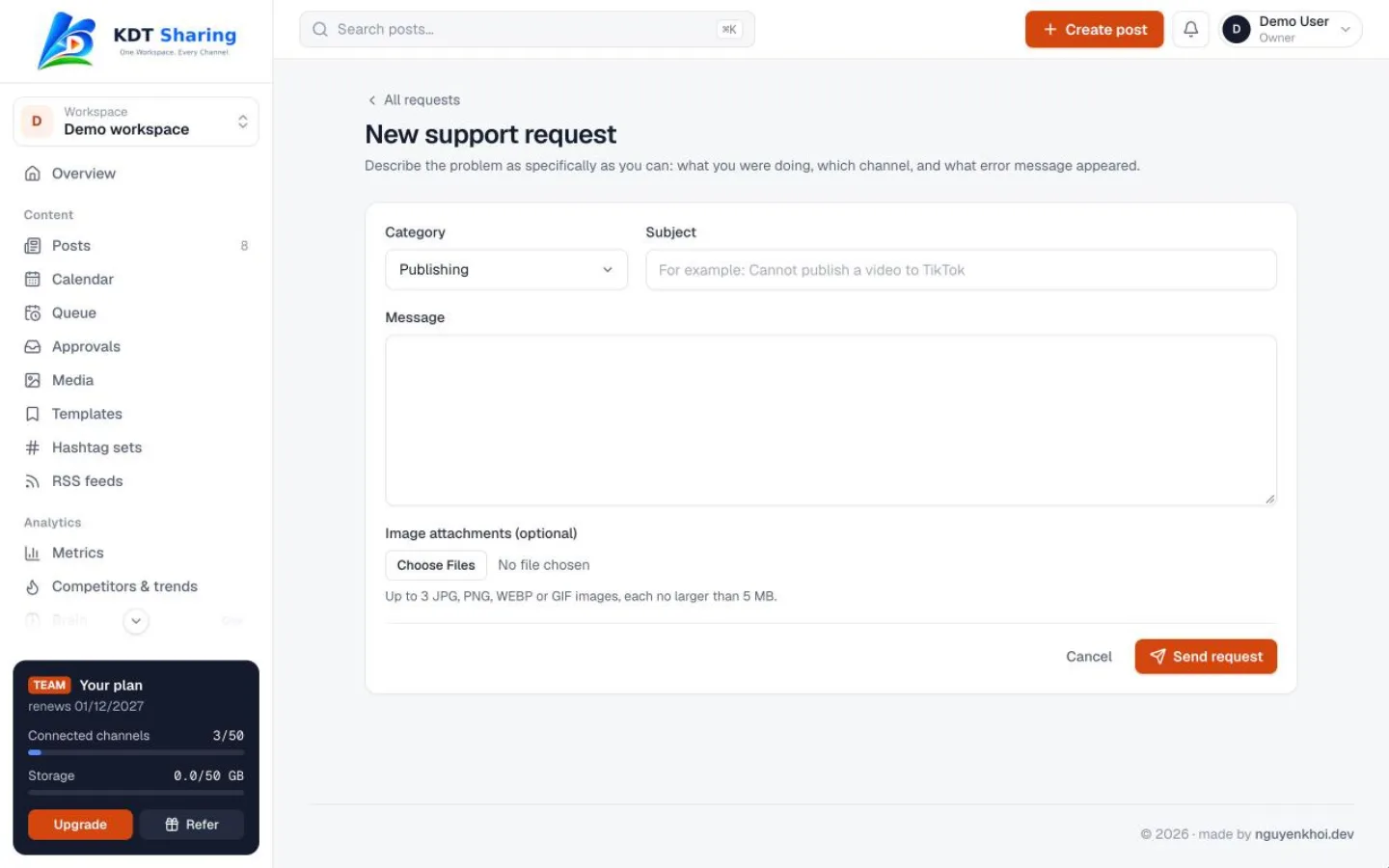
The support request form -
Pick a Category: Publishing, Channel connections, Billing and plans, Account or Other.
-
Enter a Subject, such as "Cannot publish a video to TikTok".
-
In Message, describe the problem as specifically as you can: what you were doing, which channel, and what error message appeared.
-
Add Image attachments (optional): up to 3 JPG, PNG, WEBP or GIF images, each no larger than 5 MB.
-
Click Send request.
Follow up and reply
The Support page lists your requests with their status:
| Status | Meaning |
|---|---|
| Waiting for support | The support team hasn't replied yet |
| Replied | The support team replied and is waiting for you |
| Resolved | The problem has been handled |
| Closed | The request is closed and can't take more replies |
- Click a request to see the conversation.
- Type in the Reply box and click Send reply. Replying to a Resolved request reopens it.
- When you don't need more help, click Close request and confirm.
A closed request can't take more replies. Click Send a new request if you need more help.
Common errors
| Message | What to do |
|---|---|
| You can attach up to 3 images. | Remove some images and keep only the most useful ones. |
| Attachments must be JPG, PNG, WEBP or GIF images. | Take the screenshot again or save the image in one of these formats. |
| This request is closed. | Send a new request. |