Store media on Google Drive
The Storage page lets you connect your own Google Drive. Once connected, new media is saved to your Drive and doesn't count toward your plan's media storage. When a post goes out, KDT Sharing fetches the file from Drive and sends it to the channel.
Before you start
- Plan: storing media on Google Drive is included in the Creator and Team plans. Other plans see "Your current plan does not include storing media on Google Drive" with an Upgrade your plan link. See Plans and billing.
- Who connects: the connection belongs to your account. New media in every workspace you own, including uploads by members, goes to this Drive. Members who don't own the workspace don't need to connect anything.
- Google account: use a Google account with free space. Google storage is shared across Drive, Gmail and Google Photos.
Connect Google Drive
-
In the sidebar, under Workspace, choose Storage.

The Storage page -
Click Connect Google Drive.
-
Google asks you to pick an account and grant access. KDT Sharing only asks to create and open the files the app itself creates (the
drive.filepermission). It can't see any other files in your Drive. Keep all requested permissions and accept. -
You're taken back to Storage with "Google Drive connected". The page shows the media folder, the connected Google account, your Drive usage and how much KDT Sharing is using.
If Google reports a missing permission ("Google did not grant the file storage permission"), reconnect and don't untick anything on Google's screen.
Choose how each workspace stores media
The workspace owner picks this in Workspace settings, under Store media on Google Drive:
- Upload to Google Drive automatically: all new media goes to Drive and doesn't count toward server storage. This is the default.
- Let uploaders choose: the uploader picks server or Google Drive storage for each upload. Media stored on the server counts toward your plan's storage.
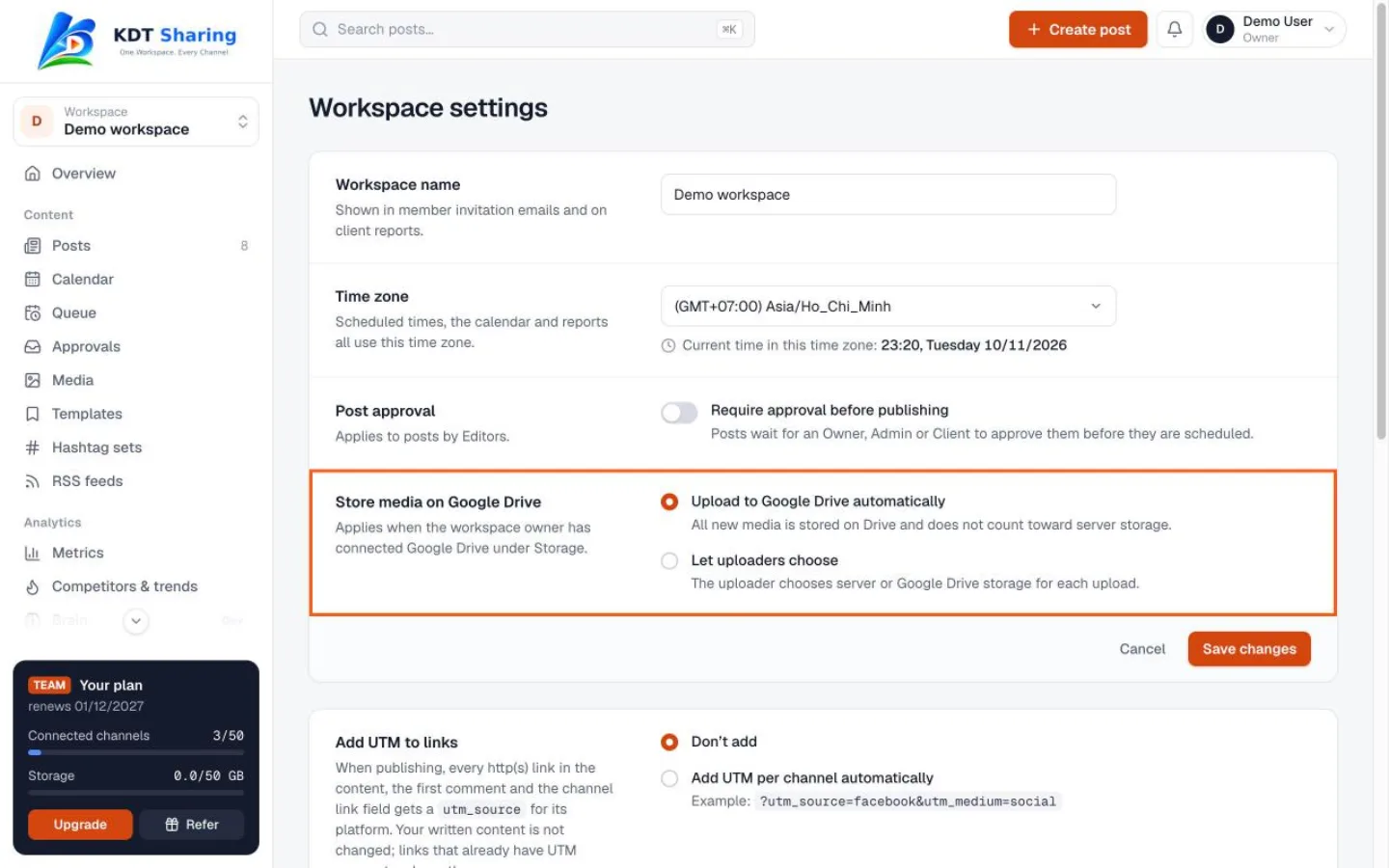
See the other options in Project settings. The media library also shows which Drive new media is going to; see Media library.
What happens when you upload
- Files are still uploaded and processed on the server first, then pushed to Drive.
- If the push fails (Drive is full, access was lost, or Drive was disconnected), the media stays on the server and counts toward your plan's storage. Posts can still use it.
- When your Drive is more than 90% full, the Storage page warns you. Once it's full, new media is stored on KDT Sharing servers.
- Deleting media in KDT Sharing moves the file on Drive to the Drive trash.
Disconnect and reconnect
- On Storage, click Disconnect.
- The confirmation tells you how many scheduled posts use media on Drive. Those posts won't publish until you reconnect. Click Disconnect to confirm.
- Your existing media stays on Drive. To use it again, click Connect Google Drive and choose the same Google account.
While you still have media on one account's Drive, KDT Sharing won't let you switch to a different Google account. Reconnect that account, or delete those media files before switching.
If KDT Sharing loses access (you revoked it in your Google account, or the token expired), the status changes to Needs reconnecting and you get a Google Drive connection notification. Click Reconnect to carry on. See Notifications.
If your plan no longer includes this feature, new media is stored on the server. Existing media on Drive still works.
Common errors
| Message | What to do |
|---|---|
| You cancelled the Google Drive connection. | You clicked cancel on Google's screen. Click Connect Google Drive to try again. |
| KDT Sharing lost access to your Google Drive. | Click Reconnect and choose the same account as before. |
| Your Google Drive is full. | Free up space in your Google account or buy more. New media is stored on the server until Drive has room. |
| Could not load your Google Drive storage. | Reload the page in a few minutes. |