Second Brain
Second Brain is a knowledge base for each workspace. You feed it documents, web pages or your published posts, and the AI distills them into short pages about your brand, products, audience, voice and lessons from analytics. When you write a post, the AI uses these pages to sound like you.
Brain sits in the Analytics group of the sidebar. It has four tabs: Pages, Sources, Ask and AI key.
The Brain item carries a Dev badge: the feature is still in development and may change.
Before you start
- Plan: Second Brain is included in the Creator and Team plans. Trial and expired plans only see an intro page with an Upgrade button. See Plans and billing.
- AI key: the brain uses the workspace's own AI key (Anthropic Claude, OpenAI or Google Gemini). Token costs are billed to your account with the provider. You can add sources before you have a key, but nothing is distilled until you add one.
- Roles:
- Owner and Admin: add, change or remove the AI key, plus everything below.
- Owner, Admin and Editor: add sources, create, edit, lock and delete pages, and use AI in the composer.
- Client reviewer: view pages and sources, and ask questions.
- Editors limited to certain channels only see shared pages and sources, or those linked to their channels.
Add an AI key
- Open Brain and choose the AI key tab.
- Under Add a key, pick a Provider. Click Get a key if you don't have one yet; the provider's site opens.
- Paste your key. Leave Main model and Cheap model on Default if you're not sure.
- Click Save and test. When you see "Key saved and the test call succeeded", the brain is ready.
The key is encrypted before it's saved and is never shown again; the page only shows its last 4 characters. The main model writes knowledge pages, drafts posts and answers questions. The cheap model reads long documents and writes per-channel captions.
If the provider list includes ChatGPT (gói Plus/Pro), you can use your ChatGPT Plus or Pro plan instead of an API key. Click Get a sign-in code, open the OpenAI page, sign in and enter the code. Calls count against your ChatGPT plan's limits, and the AI key tab shows how much you've used. This is experimental: the brain calls a non-public ChatGPT endpoint that OpenAI may change or block at any time.
Add sources
-
Choose the Sources tab.

The Sources tab: add documents, web pages and project data -
Pick how to add a source:
- Upload a document: a text PDF, DOCX, TXT or MD file. The size limit is shown under the file picker. Scanned PDFs can't be read yet.
- Add a web page: paste a link to an article or an about page and click Read page. Only public pages can be read. For PDF or Word files, upload the file instead.
- Google Drive: if you see this card, click Pick files from Drive to choose Google Docs, Google Sheets (first sheet only), PDF or DOCX files. Connect Google Drive first. When a file changes in Drive, the brain reads it again within the hour.
-
The brain reads the source and shows its character count and an estimate of tokens per distill. Review the estimate, then click Distill.
-
Wait for the status to change from Distilling to Ready. New or updated pages appear in the Pages tab.
Every sentence the AI takes from a source carries a citation back to the original section. Deleting a source removes its citations from pages, and pages left without any source are marked Source lost.
Turn on project data
The brain can read your published posts and the metrics of each channel and competitor, then write voice pages, per-channel Lessons from analytics pages and a Competitors page.
- In the Sources tab, under Project data, click Turn on project data.
- The brain reads the data within a few minutes. After that it refreshes automatically at 4:15 AM every day.
- Click Refresh now to update sooner, or Turn off auto refresh if you only want to refresh by hand.
Each refresh rewrites unlocked metrics pages from the latest data; locked pages are kept as they are. Click Turn off to stop entirely: project data sources are deleted and unlocked metrics pages are removed.
Project data needs channels or competitors with posts in the last 30 days. Check your numbers in Post analytics and Channel score.
Work with pages
-
Choose the Pages tab to browse pages by type: Brand, Product, Audience, Voice, Topic, Lessons from analytics, Competitors and Other. Use Search the brain to find one quickly.
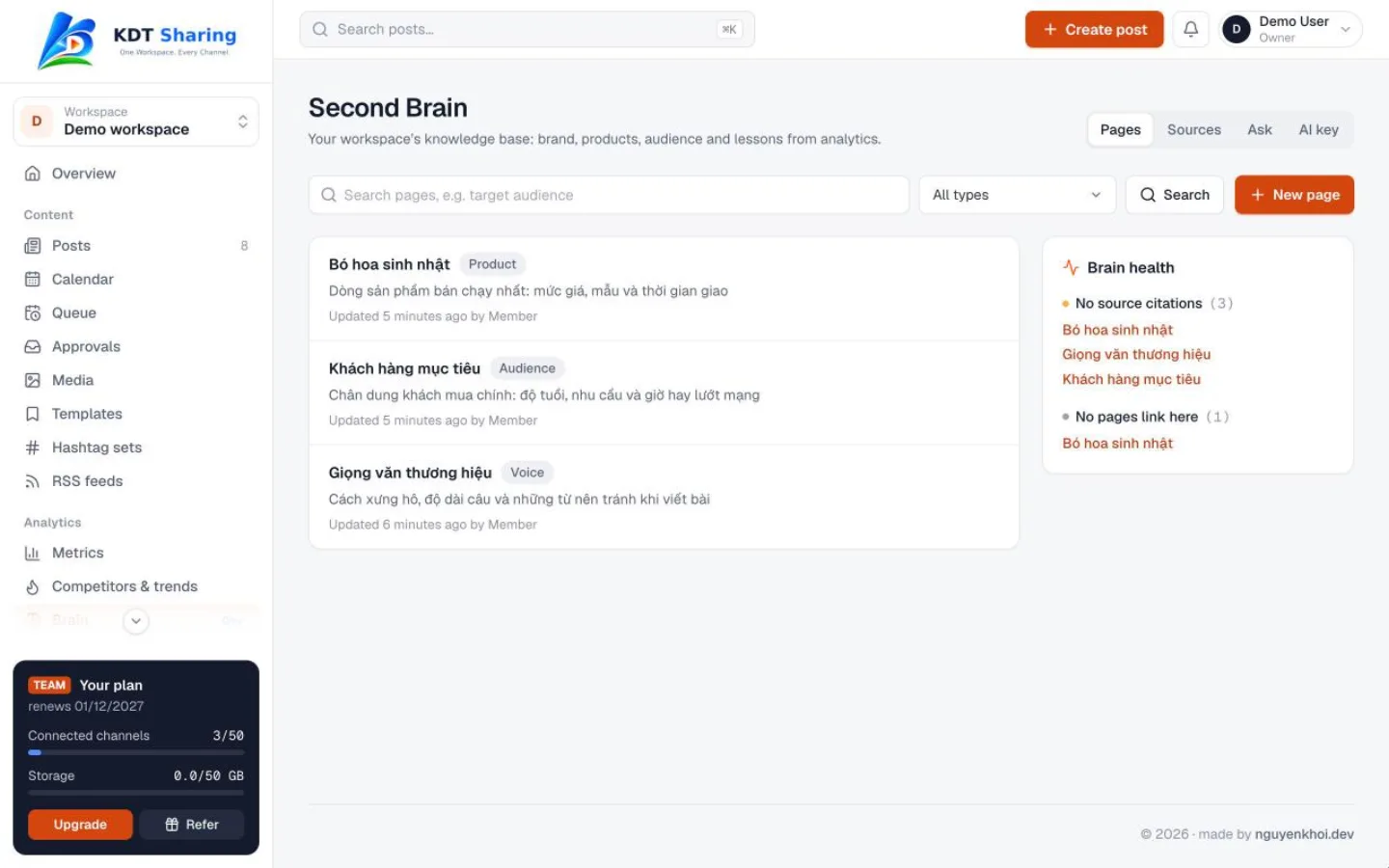
The Pages tab and the Brain health card -
Click New page to write a page yourself. Pages use markdown; type
[[page-slug]]to link to another page. Fill in the One-line summary, since the AI reads it in the index to know what the page is about. -
On a page, click Lock so the AI can't overwrite it to keep its content as is. You can still edit a locked page. Click Unlock so the AI can update it to let the AI update it again.
-
Click History to see past versions, and Restore this version to go back. Restoring creates a new version and keeps the history.
The Brain health card on the Pages tab flags things to look at: broken links, pages without source citations, pages that are too long, and pages nothing links to.
If two people edit the same page, whoever saves second on the older version is told the page was just edited by someone else. Reload the page and edit again.
Use the brain while writing
Once the workspace has an AI key, the composer gets two extra buttons:
- Write with AI: type a Post idea and click Write post. The AI uses the voice, brand and lesson pages of the selected channels to draft the post. Then click Use this post, Replace content or Append to the end. Used: lists the brain pages it relied on.
- Generate captions per channel: write the shared content first, then click this button to get a separate caption for each channel. Captions longer than a platform's limit are shortened, so read them before publishing.
See Create a post for the composer. AI agents connected over MCP can also read and write brain pages; see the Tool reference.
Common errors
| Message | What to do |
|---|---|
| This workspace has no AI key, so nothing can be distilled yet. | Ask the workspace owner or an admin to add a key in the AI key tab. |
| The AI key is invalid or isn't allowed to call this model. | Check the key and model on the provider's site, then click Test again. |
| The AI account is out of quota or credit. | Top up on the provider's site, then try again. |
| This PDF is a scanned image and OCR isn't supported yet. | Use a PDF with selectable text or a DOCX file. |
| The file isn't UTF-8 encoded. | Save the TXT or MD file again as UTF-8. |
| Couldn't find the page's main content. | The page may need a login or JavaScript to show its text. Copy the text into a file and upload it. |
| Distilling stopped halfway. | Click Resume to continue. |
Deleting data
- Deleting a workspace deletes its whole brain.
- Disconnecting a channel deletes that channel's lesson pages and metrics sources. Other pages linked to it become shared pages.
- Your account data export includes a brain section: sources you added, pages you edited and your Q&A conversations. AI keys are never exported. See Privacy.