Channels overview
A channel is a page, account, blog or site your workspace may publish to. The Channels page is where you add new channels, see which ones are active, reconnect channels that lost access, and group channels together.
Before you start
- Only the workspace Owner and Admins can connect, edit and disconnect channels. Editors see the channel list and can publish to channels, but don’t see the management buttons.
- Each plan allows a maximum number of channels, counted across all workspaces of the workspace owner. Reconnecting an existing channel doesn’t count again. See Plans and billing.
- You need an account on the platform that is allowed to post to the page or account you want to connect.
Open the Channels page
In the sidebar, under Channels, choose Connected channels. The Connect channels button on the Overview page also leads here.
The page has three sections:
- Connect a new channel: one tile per platform, such as Connect Facebook.
- Connected channels: one card per channel, with its name, platform, status and management buttons.
- Channel groups: groups you create to pick channels quickly when writing a post.
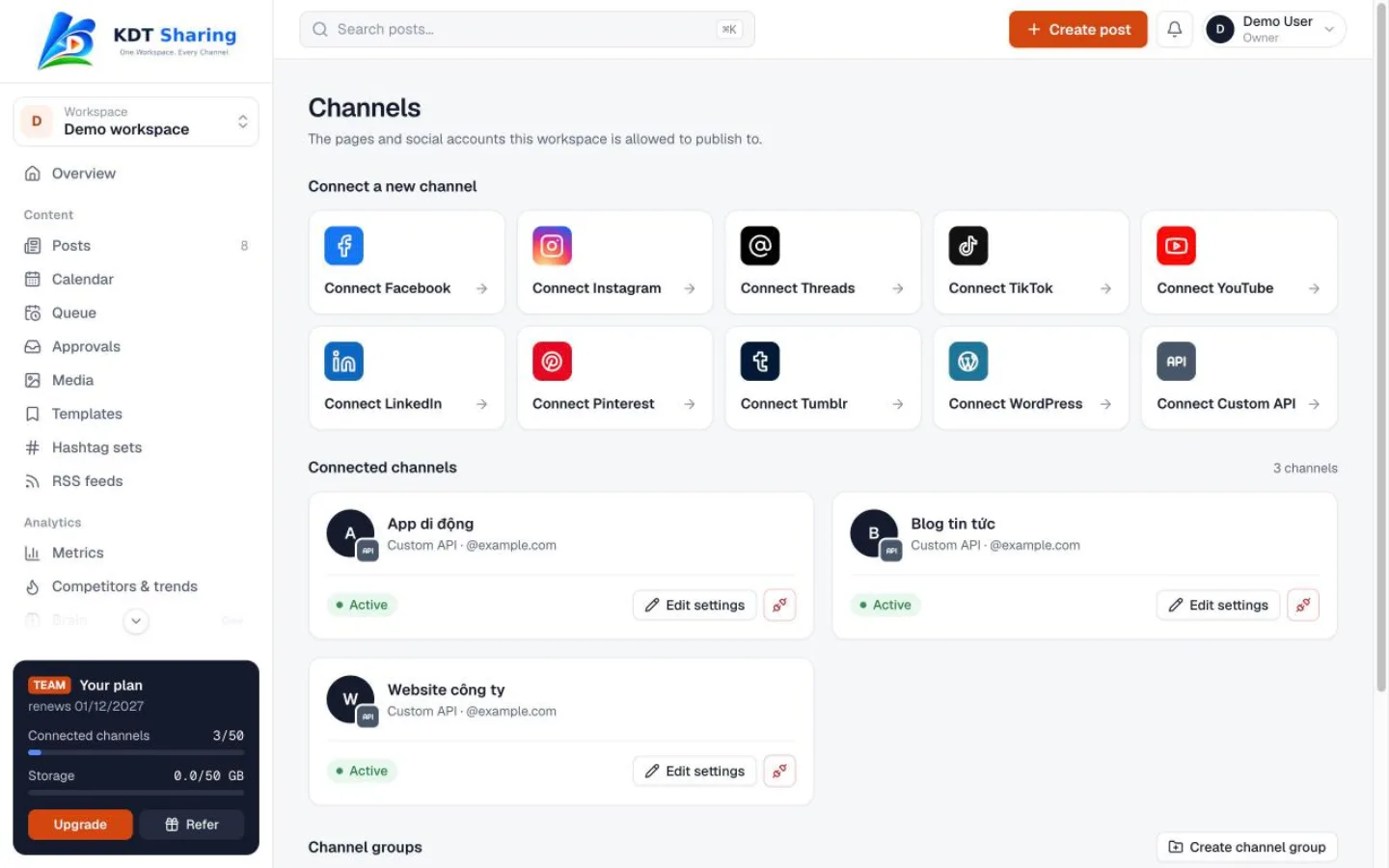
Connect a new channel
There are two ways to connect, depending on the platform:
- Sign in on the platform’s own page (Facebook, Instagram, Threads, TikTok, YouTube, Zalo OA, LinkedIn, Pinterest, Tumblr, X).
- Fill in a credentials form (WordPress and Custom API).
For platforms that use their own sign-in page:
- In Connect a new channel, click the platform tile, for example Connect Facebook.
- The app sends you to the platform’s sign-in page. Sign in and allow the permissions it asks for.
- The platform sends you back to the app.
- If the account has only one channel, it is added right away.
- If it has several (several Pages, several blogs…), the Select channels screen appears with every channel already ticked. Untick the ones you don’t need and click Connect selected channels. You have 10 minutes to choose.
- The Channels page confirms the connection, for example "Connected 2 Facebook channels."
Channels are always added to the workspace you had open when you clicked connect. The selection screen shows that workspace’s name.
Each platform has its own guide in this section, for example Facebook, WordPress or Custom API.
Channel status
Each channel card shows a status label:
| Status | Meaning |
|---|---|
| Active | The channel publishes normally. |
| Needs reconnecting | The app lost access, or the saved credentials are no longer valid. Posts to this channel will fail until you fix it. |
When a channel needs attention, the top of the Channels page shows how many channels need reconnecting or fixing their settings. The sidebar also shows how many channels need reconnecting.
The app checks channels every day and refreshes access automatically when the platform allows it. When a channel loses access, the workspace owner and admins get a "Channel … needs reconnecting" notification. See Notifications.
Reconnect a channel
A channel can lose access when you change your password on the platform, remove the app’s access, lose your role on a Page, or when access expires.
- On a channel card labeled Needs reconnecting, click Reconnect.
- Sign in again on the platform’s page with the same account you used originally and allow all permissions.
- The channel returns to Active. Scheduled posts stay as they are.
If several channels get their access from the same account (such as several Facebook Pages), reconnecting once is enough.
Some platforms, such as LinkedIn, only grant access for a limited time with no way to refresh it. When access is about to expire, the channel card shows "Expiring soon, reconnect before" with the date, and the Reconnect button appears early. Reconnect before the deadline so your scheduled posts still go out.
Edit WordPress and Custom API settings
Channels connected with a form have an Edit settings button instead of Reconnect.
- Click Edit settings on the channel card.
- Change what you need. Leave the password or key field blank to keep the current value. Credentials are encrypted when saved and are never shown on the page again.
- Click Save settings.
Each form is covered in WordPress and Custom API.
Channel groups
Channel groups let you select many channels at once when writing a post, for example every channel of "Client A".
- In Channel groups, click Create channel group. This button only appears once the workspace has channels.
- Enter a Group name and tick the channels in the group.
- Click Save group.
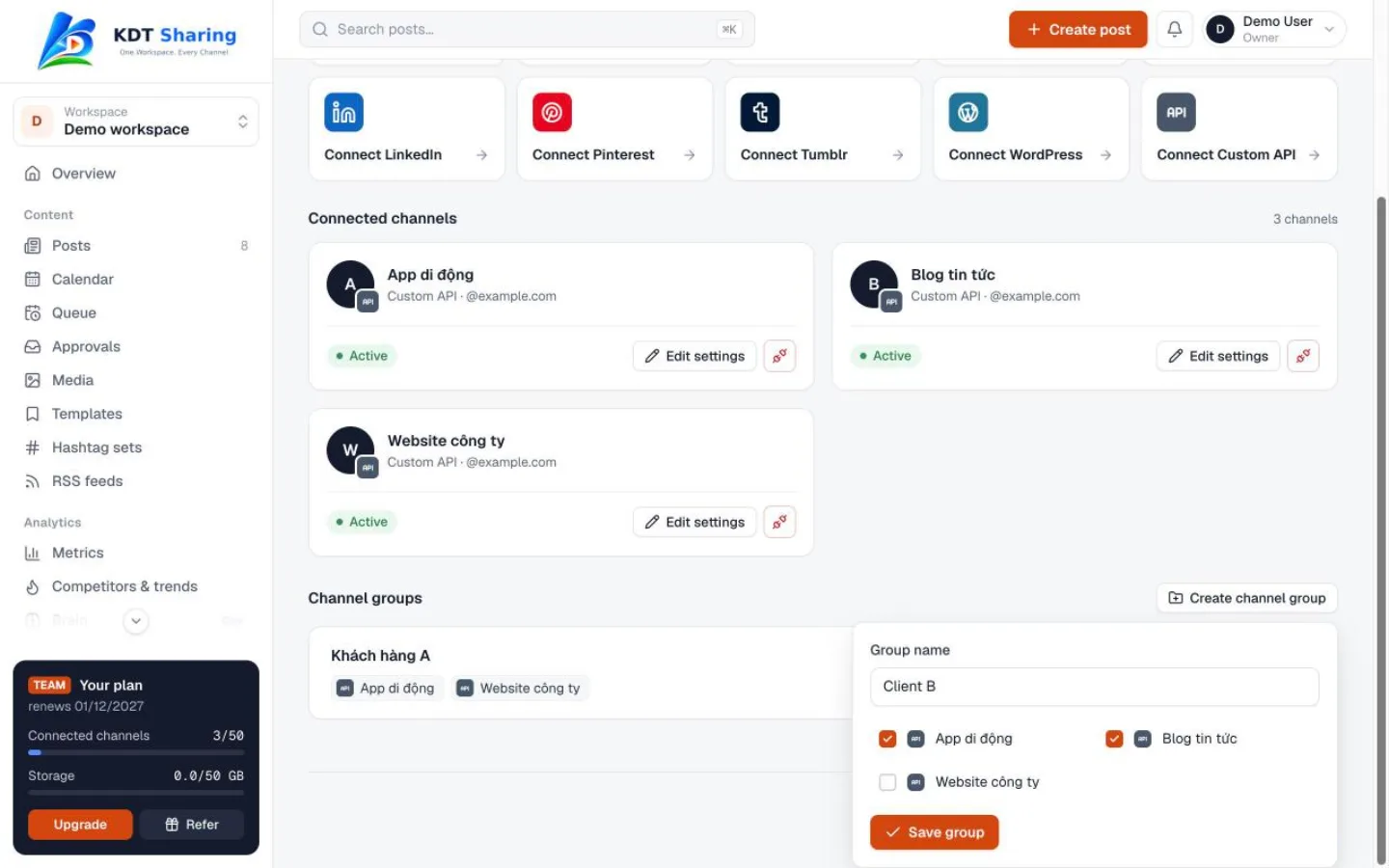
To rename a group or change its channels, click the pencil icon (Edit group). Delete group is in the same place. Deleting a group doesn’t disconnect any channel. A channel can belong to several groups.
When writing a post, pick the group in the Channel group menu and click Select all. See Create a post.
Disconnect a channel
- On the channel card, click the disconnect icon (Disconnect).
- A "Disconnect" confirmation with the channel name appears. Click Disconnect to confirm.
The channel is removed from the workspace and the app deletes its saved access. To use it again, connect it from scratch.
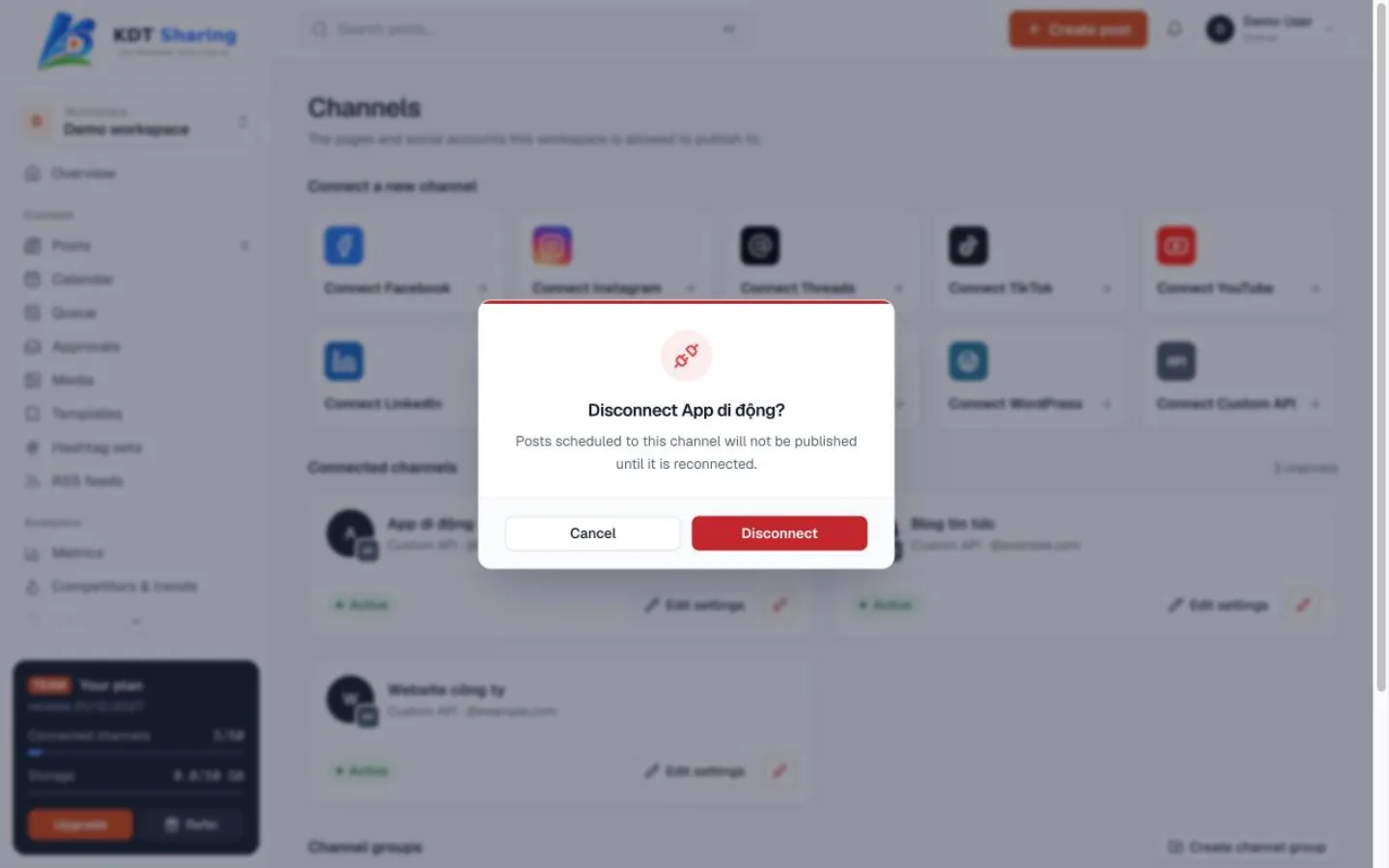
You can’t disconnect a channel that has posts waiting to publish (scheduled, waiting for approval or publishing). Cancel or edit those posts first and remove this channel from them.
Posting limits
Each platform has its own limits on text length, number of images, and video type and size. The composer checks these limits for each channel before letting you publish. The exact numbers are on each platform’s page. On top of platform limits, files must also fit the upload limits of the Media library.
If a platform is temporarily paused, its channels stay in the list but can’t publish. The composer shows "This platform is temporarily unavailable."
Common errors
| Message | What to do |
|---|---|
| You cancelled the connection. | You closed or declined the platform’s page. Click connect again and allow all permissions. |
| The connection session is invalid. Please try again. | You started the connection in another tab or waited too long. Start again from the Channels page. |
| No accounts were found to connect. | The account you signed in with has no page or channel the app can use. Check the requirements on the platform’s page. |
| The channel selection has expired. Please connect again. | You left the Select channels screen open for more than 10 minutes. Connect again. |
| You have not selected any channels. | Tick at least one channel on the Select channels screen. |
| Your current plan allows up to … channels across all workspaces. Upgrade to connect more. | Disconnect channels you don’t use, or upgrade on Plans and billing. |
| This channel has posts waiting to publish. Cancel or edit those posts before disconnecting. | Open the Post list and cancel those posts or remove this channel from them. |