Calendar
The Calendar page lays your workspace's posts out across the days. Times follow the workspace time zone, shown under the page title.
Before you start
- Every member can view the calendar.
- Editors limited to certain channels only see posts on their assigned channels.
- The calendar only shows posts that have a publish time. Drafts without a time are in the Post list.
View the calendar
- Go to Calendar in the left sidebar.
- Choose Month or Week. Month is the default.
- Use Previous and Next to move between periods, and Today to jump back.
- Filter with All platforms and All channels if you only want part of the picture.
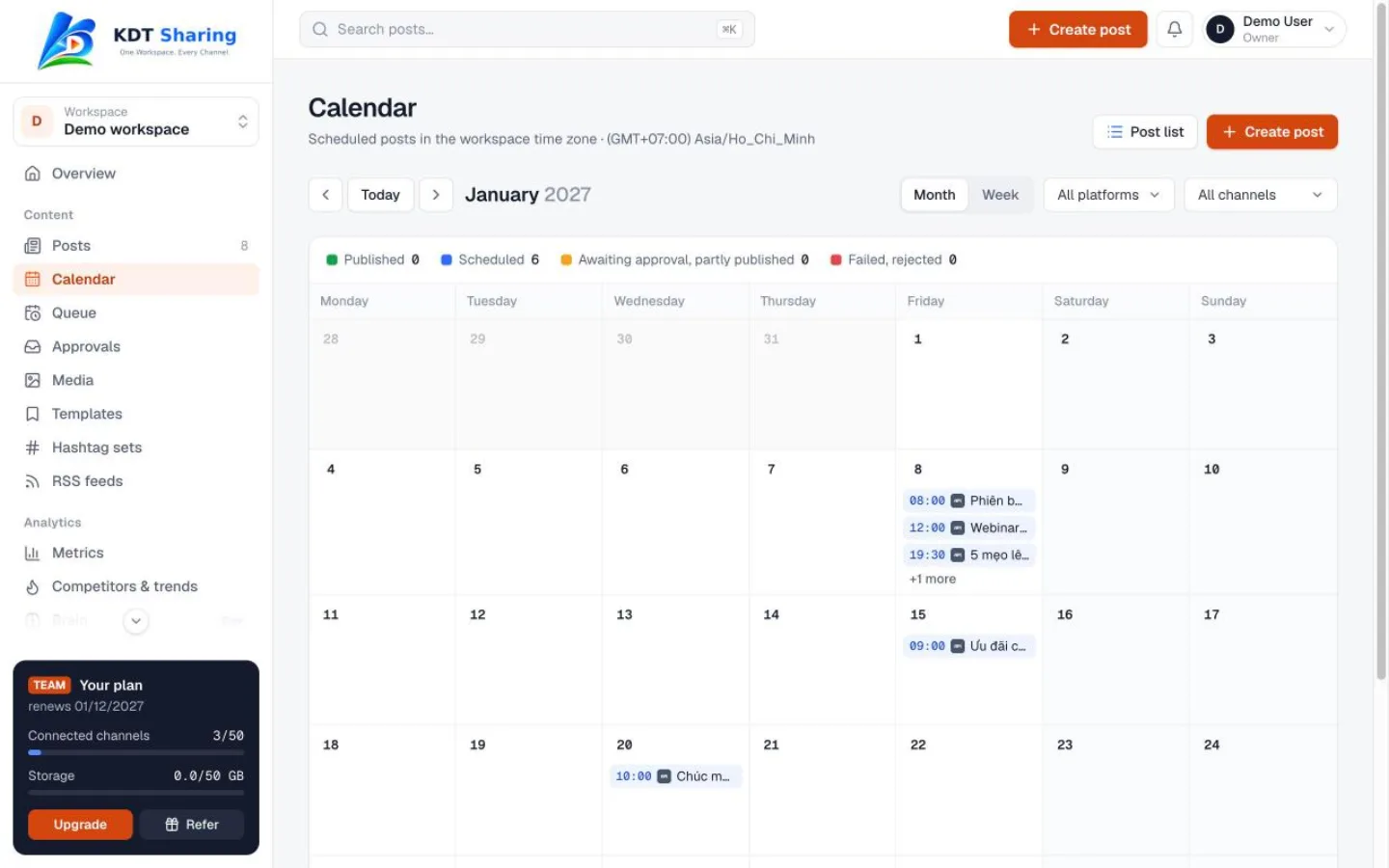
In month view each day shows up to three posts. Busier days show a line such as +2 more; click it to open the week containing that day.
Post colors
| Color | Status |
|---|---|
| Green | Published |
| Blue | Scheduled, Publishing |
| Yellow | Pending approval, Partially published |
| Red | Failed, Rejected |
| Gray | Draft that already has a publish time |
Hover over a post to see its status and platforms.
Open or reschedule a post
Click a post on the calendar:
- Posts you can still edit (draft, scheduled, pending approval, rejected) open straight in the editor, if you can write posts. Change the time there with Schedule.
- Published or publishing posts open at their place in the Post list.
note
The calendar has no drag and drop. To move a queued post to another time slot, use Move on the Queue page.
Click Post list at the top of the page to switch back to the list, or Create post to write a new one.
Next steps
- Create a post
- Queue
- Workspace settings to change the time zone