RSS feeds
The RSS feeds page watches your blog or website through its RSS or Atom link. Whenever the feed has a new article, the app creates a post for the channels you picked.
Before you start
- Only Owners, Admins and Editors can add and manage feeds.
- You need an RSS 2.0 or Atom link starting with
http://orhttps://. Many blogs use a link likehttps://blog.example.com/feed. - Each workspace can have up to 20 feeds.
Add a feed
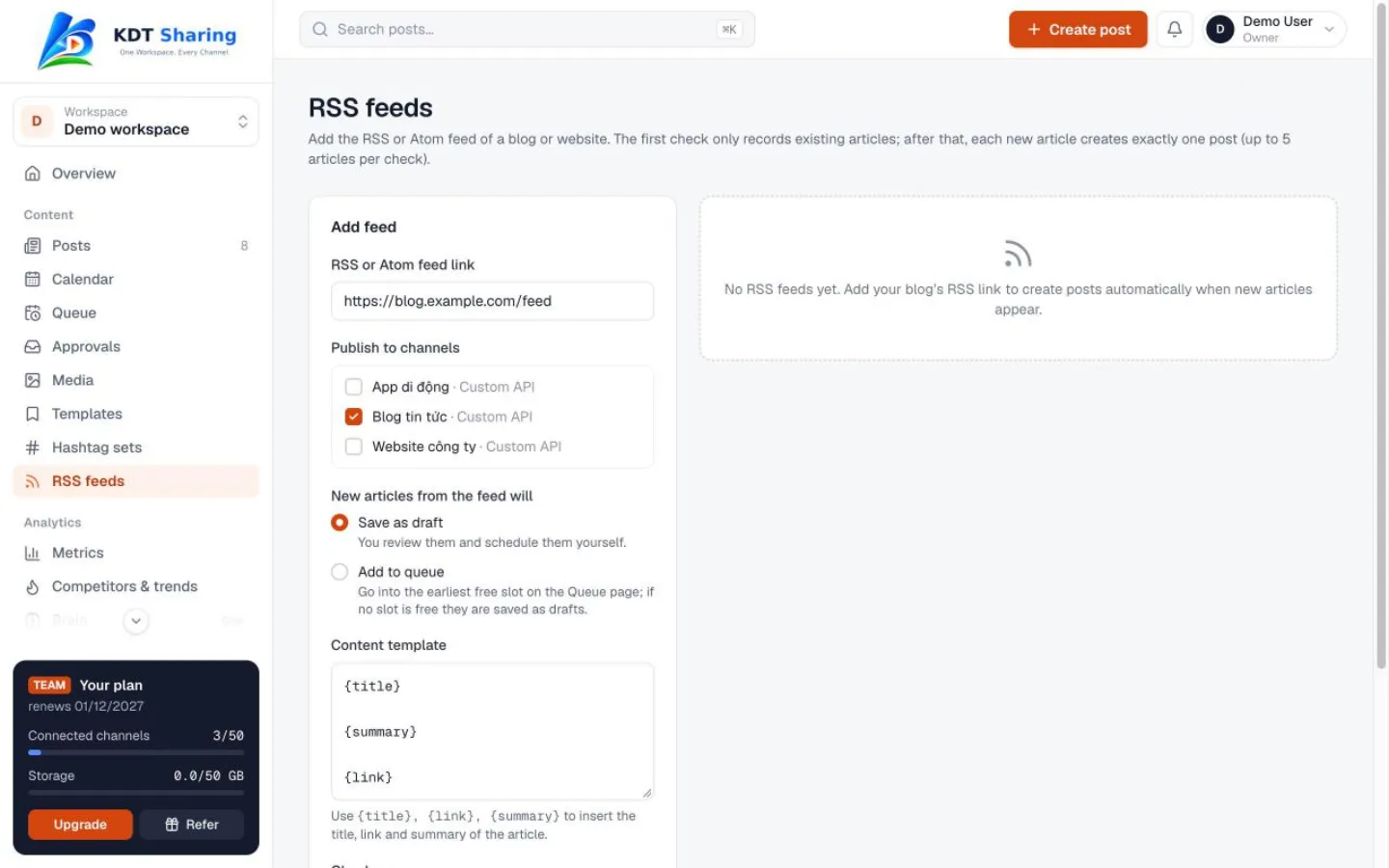
- Go to RSS feeds in the left sidebar, under Content.
- Enter the RSS or Atom feed link.
- Pick the channels under Publish to channels.
- Choose what New articles from the feed will do:
- Save as draft: you review them and schedule them yourself.
- Add to queue: they go into the earliest free slot on the Queue page. If no slot is free, they're saved as drafts.
- Edit the Content template if you like. Use
{title}for the title,{link}for the link and{summary}for the article summary. The default template has the title, summary and link. - Choose Check every: from 15 minutes to 1 day. The default is 1 hour.
- Click Add feed.
The post image comes from the feed. If the feed has none, the app tries the article page's preview image.
How a feed works
- The first check only records the articles already in the feed and creates no posts, so old articles don't flood your channels.
- After that, each new article creates exactly one post. Each check creates at most 5 posts.
- Posts are created under the name of whoever saved the feed. If that person loses permission to write posts in the workspace, the feed pauses.
:::note Channels that work with RSS
- TikTok doesn't, because TikTok requires policy consent for each post.
- YouTube doesn't, because YouTube only publishes video.
- Pinterest only works in Save as draft mode, because you need to pick a board in the composer. :::
Manage feeds
Each feed shows Running or Paused, when it was last checked and when the next check is. You can:
- Pause or Resume the feed.
- Check now without waiting for the next check.
- Edit feed to change channels, mode, template or interval. Saving makes you the author of posts created from the feed. Changing the link records the feed again from scratch, without creating posts for existing articles.
- Delete the feed. Posts already created from it are kept.
Below each feed is a list of recent articles with statuses such as Existing when added, Post created, Skipped or Failed.
When a feed fails
If the app can't read a feed, the feed shows Failed ... times in a row with the reason. After 5 failures in a row you get an "RSS feed can't be read" notification. See Notifications.
| Message | What to do |
|---|---|
| The link is not an RSS 2.0 or Atom feed. | Check the link by opening it in your browser. |
| This RSS feed is already in the workspace. | Use the existing feed. |
| Each workspace can have at most 20 RSS feeds. | Delete feeds you don't use. |
| The feed owner can no longer create posts in this workspace, so the feed was paused. | Click Edit feed, save it to take ownership, then click Resume. |
| None of the feed's channels can publish anymore. | Reconnect the channels, or edit the feed to pick others. |
| The feed is paused. Resume it before checking. | Click Resume first. |