Import posts from CSV
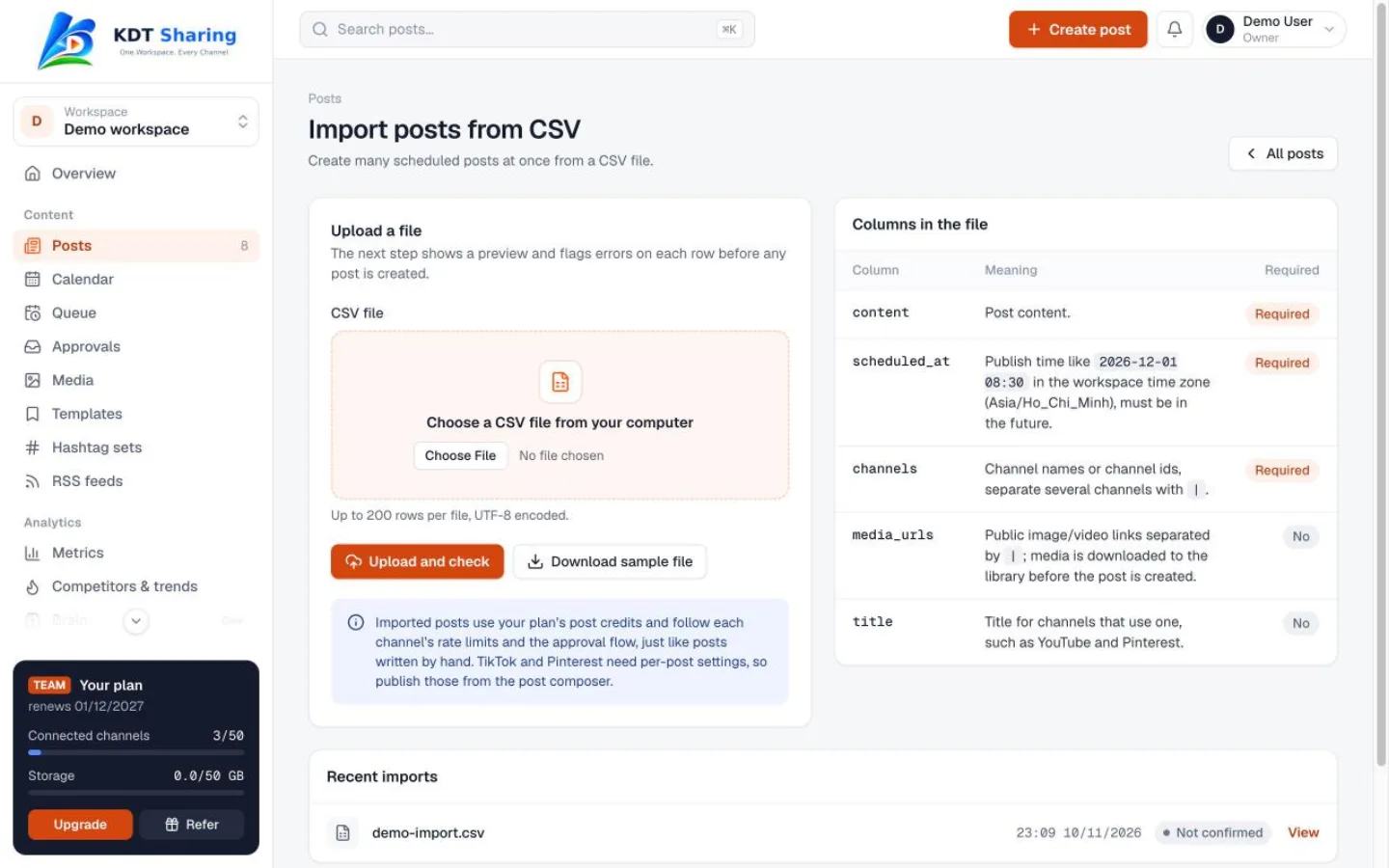
The Import posts from CSV page lets you create many scheduled posts at once. Build the list in Excel or Google Sheets, save it as a .csv file and upload it. The app checks every row before creating anything.
Before you start
- Only Owners, Admins and Editors can import posts.
- The channels you want to post to must be connected and working.
- Imported posts use your plan's post credits and follow each channel's rate limits and the approval flow, just like posts written by hand.
Prepare the CSV file
- Go to Posts and click Import CSV.
- Click Download sample file to get
mau-nhap-bai.csvwith the columns ready. - Fill in one post per row using the table below.
- Save the file as CSV with UTF-8 encoding. Commas or semicolons both work; the app detects the separator.
| Column | Required | Content |
|---|---|---|
content | Yes | Post content, up to 20,000 characters. |
scheduled_at | Yes | Publish time like 2026-12-01 08:30, in the workspace time zone, in the future. |
channels | Yes | Channel names or channel ids. Separate several with |. Up to 50 channels per post. |
media_urls | No | Public image or video links separated by |. Up to 20 media per post. Media is downloaded to the library before the post is created. |
title | No | Title for channels that need one, such as YouTube. Up to 300 characters. |
Each file can have up to 200 data rows and be up to 5 MB. Split larger files and import each part.
:::note Channels to post from the composer
- TikTok requires policy consent for each post, so it can't be imported from CSV.
- Pinterest needs a board picked per post, so use the Create post page for it too. :::
Upload and check
- Click Choose a CSV file from your computer and pick the file.
- Click Upload and check.
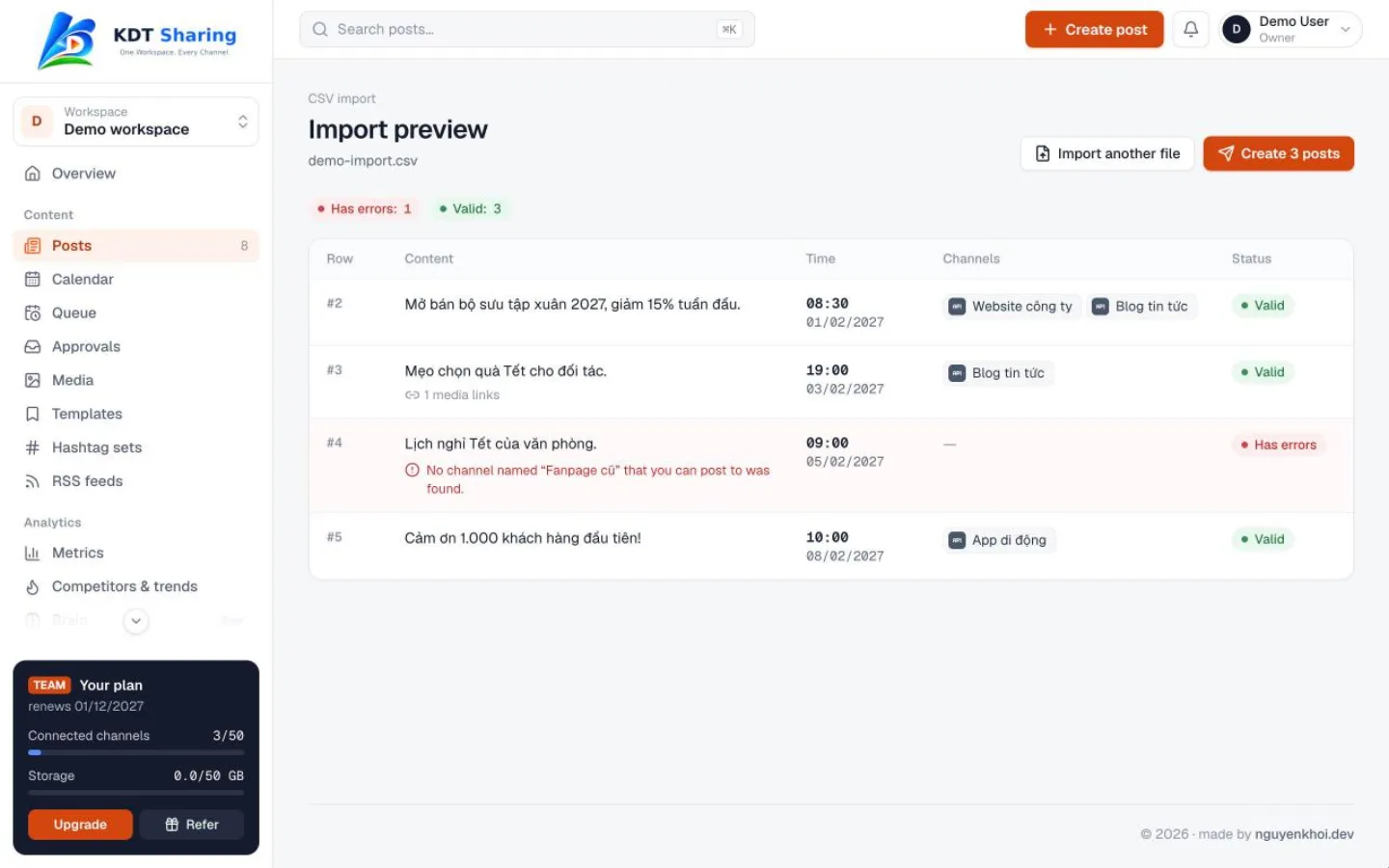
The app opens the Import preview. Each row is marked Valid or Has errors, with the exact reason for each error.
Confirm and create posts
- Read the errors on rows marked Has errors. To import everything, fix the file and click Import another file to upload it again.
- When you're happy, click the create button, for example Create 12 posts. The number is the count of valid rows; rows with errors are skipped.
- Confirm in the Create posts from the file? dialog.
Rows with media links need time to download the media. Meanwhile they show Processing; click Reload the page to see the latest results. When done, a row shows Post created with a View post button, or Not created with the reason.
The new posts are Scheduled. If your posts need approval, they go to Pending approval instead. See Approvals.
Recent imports
The CSV import page has a Recent imports section. Files that created posts are marked Confirmed; files that were checked but not created are marked Not confirmed. Click View to open the results again.
Common errors
| Message | What to do |
|---|---|
| The file must be saved with UTF-8 encoding. | Save the file again as "CSV UTF-8". |
| Missing columns: ... Please use the sample file. | Keep the sample file's header row as it is. |
| Time “...” is not in the expected date format. | Write it like 2026-12-01 08:30. |
| Time ... is in the past. | Pick a time in the future. |
| No channel named “...” that you can post to was found. | Check the channel name, or your posting access to that channel. |
| Several channels are named “...”. Use the channel id instead. | Write the channel id instead of the name. |
| Channel “...” needs a title (title column). | Fill in the title column for that row. |
| Channel “...”: TikTok requires policy consent for each post. | Publish TikTok posts from the composer. |
| The file has more than 200 data rows. | Split the file into several parts. |