Post list
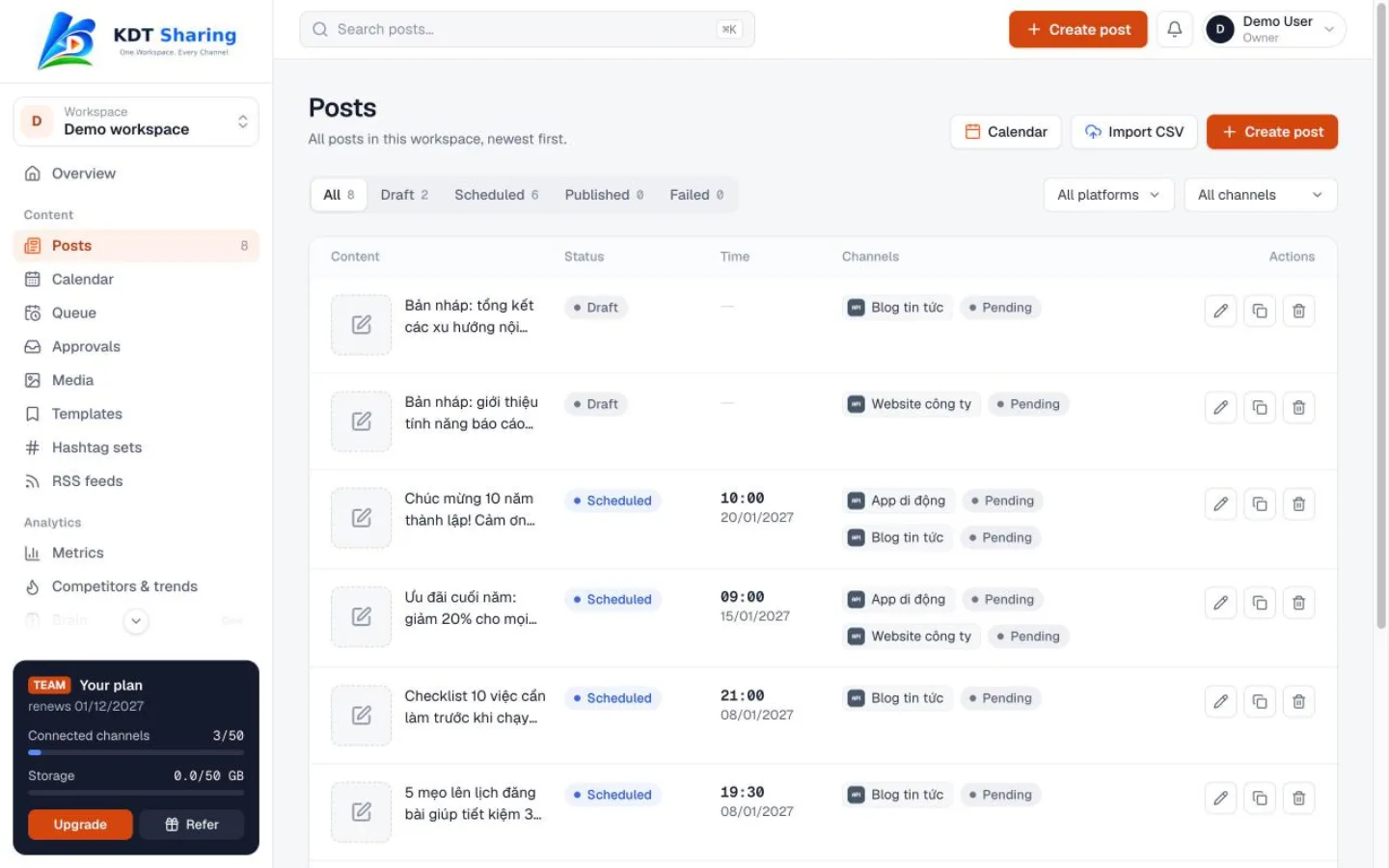
The Posts page lists every post in the workspace, newest first. Each post shows an overall status plus its status on each channel.
Before you start
- Every member can view the list. Only Owners, Admins and Editors can edit, duplicate, delete and retry posts.
- Editors limited to certain channels only see posts on their assigned channels.
Find and filter posts
- Go to Posts in the left sidebar.
- Click a status tab to filter, for example Draft or Failed. The number next to it is the count of posts in that status. The Pending approval, Rejected, Publishing and Partially published tabs only appear when there are such posts.
- Use All platforms or All channels to narrow further.
- Type into Search posts… in the top bar to search by content. The shortcut is ⌘K or Ctrl+K.
Post status
| Status | Meaning |
|---|---|
| Draft | Saved but not on the schedule yet. |
| Pending approval | Waiting for someone who can approve it. See Approvals. |
| Rejected | A reviewer rejected it. Edit the post and resubmit. |
| Scheduled | Will publish automatically at the set time. |
| Publishing | The app is sending the post to its channels. |
| Published | Live on every channel. |
| Partially published | Live on some channels; the others failed. |
| Failed | Didn't go live on any channel. |
You can edit posts that are Draft, Pending approval, Rejected or Scheduled. Once publishing starts, the post can't be edited.
Status on each channel
The Channels column shows the post's own status on each channel:
| Status | Meaning |
|---|---|
| Pending | Not time to publish yet. |
| Publishing | Being sent to the platform. |
| Processing on platform | The platform received the post and is still processing it, common with videos. |
| Published | Live on the channel. |
| Failed | Couldn't publish. The reason is shown right below. |
| Cancelled | Publishing to this channel was cancelled before it started. |
View a published post
When a channel shows Published, click View next to the channel name to open the post on the platform. Engagement numbers also appear here once the platform returns them. See Post analytics.
Retry a failed channel
- Find the channel marked Failed and read the reason below it.
- Fix the cause first. For example, if the error is "The channel needs to be reconnected.", reconnect it under Connected channels.
- Click Publish again next to that channel and confirm. Each retry uses one post credit.
Only failed channels can be retried. Click Need help? if you want to send a request to the support team. See Support.
:::warning When the result couldn't be confirmed If the error is "Couldn't confirm whether the post was published", the post may already be live. Check the channel on the platform. Only when you're sure it isn't, tick I checked on the platform and the post wasn't published and then click Publish again, so you don't end up with a duplicate. :::
Edit, duplicate and delete
The Actions column has three buttons:
- Edit: opens the post in the composer. Only shown for posts that can still be edited.
- Duplicate: creates a new draft with the same content, media and channels.
- Delete: deletes the post and its schedule. Posts already live on the platforms stay as they are. A post that is publishing can't be deleted yet.
Common publishing errors
| Message | What to do |
|---|---|
| The channel needs to be reconnected. | Reconnect the channel, then click Publish again. |
| The platform is rate limiting requests. We retried but it still failed. | Wait a while, then retry. |
| The platform isn't responding right now. We retried but it still failed. | Retry in a few minutes. |
| The platform rejected the post. | Check the content and media against the platform's rules. |
| Couldn't read the media on Google Drive. | Check the Drive connection. See Store media on Google Drive. |
| The account no longer has an active plan. | Renew the plan. See Plans and billing. |
Next steps
- Calendar
- Import posts from CSV
- Notifications to hear about failed posts