Queue
The Queue page lets you set publishing time slots that repeat every week. In the composer you then click Add to queue instead of picking a time, and the post drops into the earliest free slot for the selected channels.
Before you start
- Every member can view the queue. Only Owners, Admins and Editors can add slots and move posts.
- Times use the workspace time zone, shown under the page title. Change it in Workspace settings.
Add a time slot
- Go to Queue in the left sidebar.
- In Add time slot, enter the Publish time.
- Under Applies to, choose All channels or a single channel.
- Pick the days under Days of the week.
- Click Add time slot.
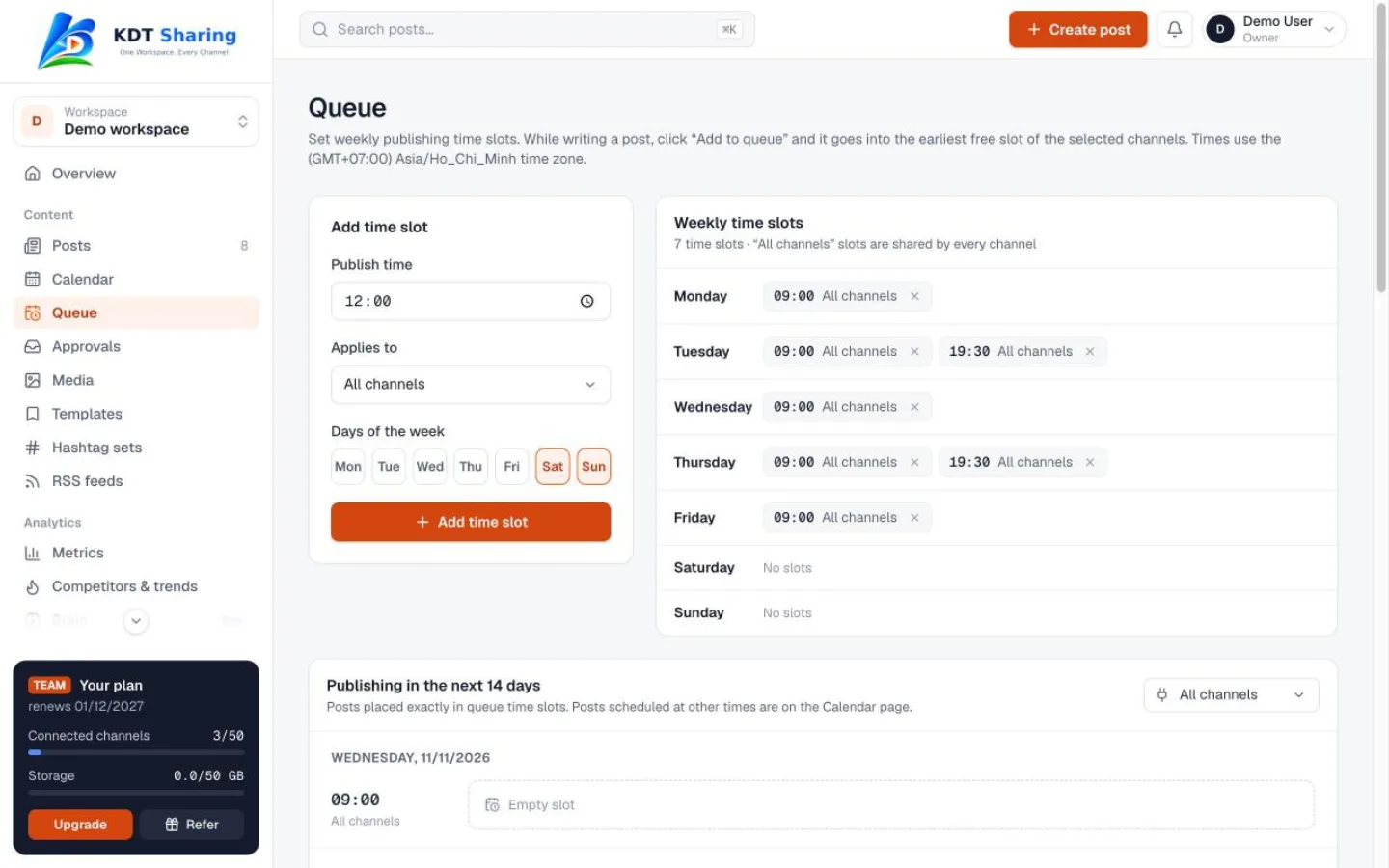
The Weekly time slots grid shows slots by weekday. Click the × on a slot to delete it. Each workspace can have up to 200 slots.
:::note Editors limited to certain channels If you can only post to some channels, you can only add slots for those channels, not for All channels. :::
How posts are queued
When you click Add to queue on the Create post page:
- The app looks for the first slot that applies to every selected channel. All channels slots are shared by every channel; a channel slot only applies to that channel.
- That slot must be free: none of the selected channels already has a post at that exact time.
- The app looks about 8 weeks ahead. Slots too close to the current time are skipped.
If there's no shared free slot, the app says "The selected channels have no shared free time slot in the queue". Add slots or select fewer channels.
Repeating posts, and posts from RSS feeds in queue mode, find their slot the same way.
Review and rearrange upcoming posts
Publishing in the next 14 days lists every slot by day. Slots without a post show Empty slot. Filter by channel with the All channels box.
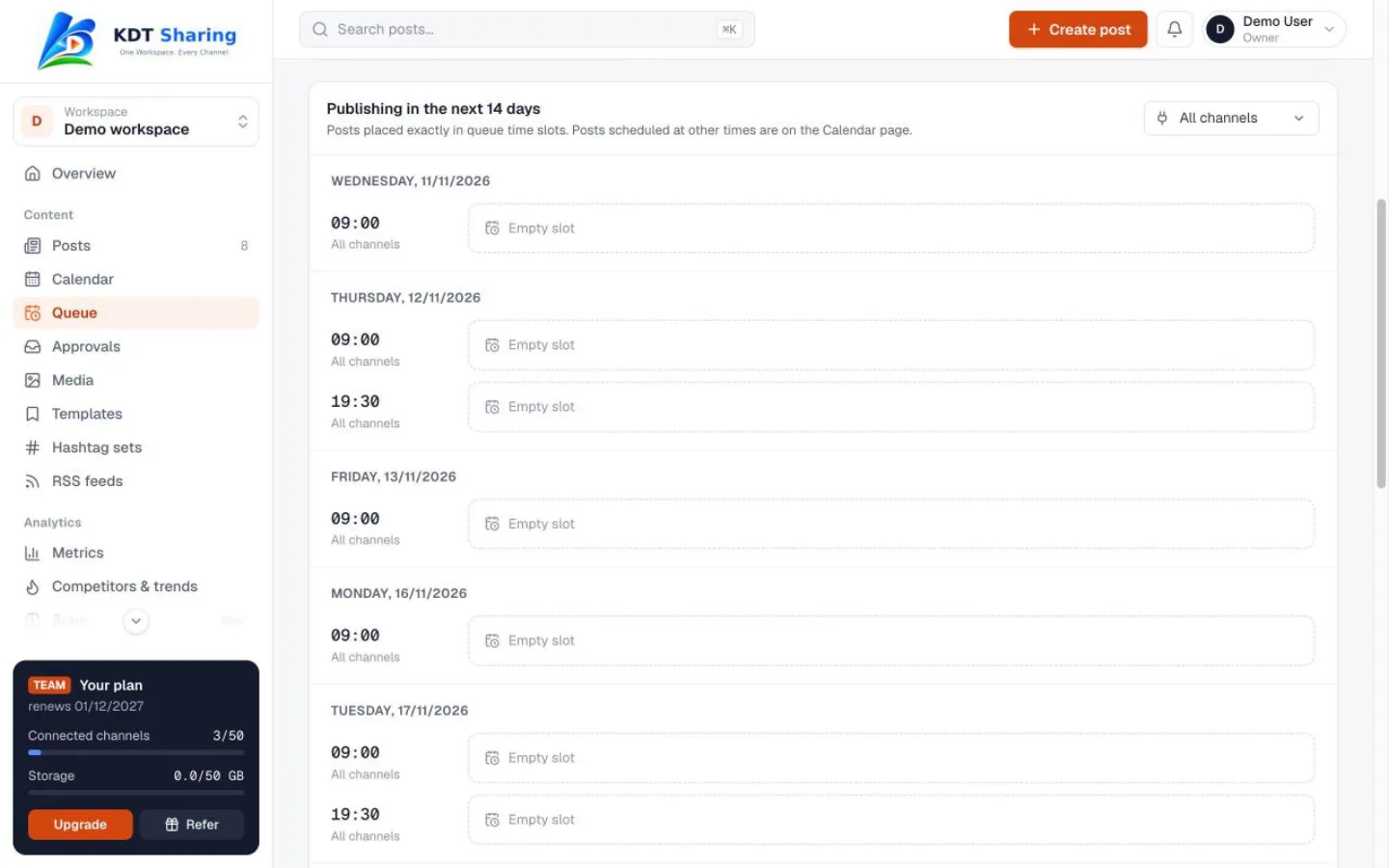
For each queued post you can:
- Move: pick another free slot and click Move.
- Edit: open the post in the composer.
- Remove from queue: the post leaves the queue and is kept as a draft. The post credit used is refunded.
This list only shows posts placed exactly in queue slots. Posts scheduled at other times are on the Calendar.
Common errors
| Message | What to do |
|---|---|
| Each workspace can have at most 200 time slots. | Delete slots you don't use. |
| This time slot is no longer free for the post's channels. | Pick another slot in the Move box. |
| You can only add time slots for channels you can post to. | Pick a channel assigned to you. |
| The post is no longer waiting in the queue. | It was published or changed. Reload the page. |